


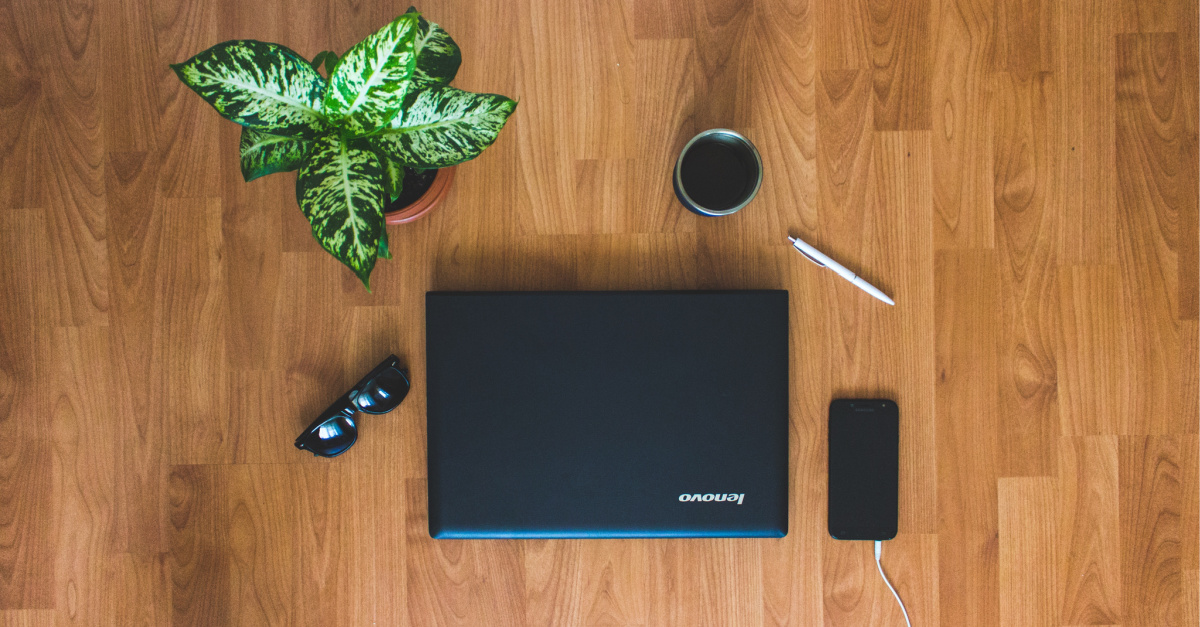
When we think of goals and decluttering, we usually think of New Year’s Eve and spring. We set goals for spring cleaning in the new year and once the weather warms up. We frequently clear out spaces such as attics, garages, closets, and bookshelves. But how often do we digitally declutter? We don’t think about it until we’re looking for files, photos, and receipts on our computers. Here are some ideas for giving your computer and digital life a new reset.
Why is June the best time for a digital reset?
June is the perfect time to declutter your digital life. We’re only halfway through the year, so it’s easier to do six months’ worth of work than a full year’s worth. However, if you haven’t done any digital organization in a while, it may take longer. In any case, whether you have a large number of files to process or minimal files, digital organization is a great idea.
Purposefully reviewing your device’s inbox, apps, passwords, notifications, files, and online habits will help you in the long run.
Start with a simple digital audit
Digital audits don’t have to be complicated. It’s best to keep things simple. Start with each email provider’s inbox. Next, go through the apps on your computer and phone and remove the ones you don’t use or need.
Third, check your notifications and delete anything you don’t need.
Fourth, go through your files and downloads and remove anything that is useless or unnecessary. It’s very easy to download workbooks, checklists, and tips to XYZ and save them to your computer. I’ve done this many times and can’t access everything I’ve saved. You’ll actually have to do this yourself soon because there’s a backlog of downloads. Also, check your computer’s bookmarks to see what you no longer need.
The benefit of conducting a digital audit is that it provides more clarity than staring at a long list of emails, files, folders, and bookmarks. It helps uncover waste such as files and folders that are no longer needed. It highlights risks such as weak passwords so you can create stronger and more secure passwords. Your future decisions will be better because you will have less to deal with. “Yes, I’ll keep this” or “I don’t need this” is sufficient.
Empty your email inbox and unsubscribe without mercy
Start with each email provider’s inbox. Make sure you read everything you receive, and as you go along, delete what is no longer useful to you and unsubscribe.
You can also go through your folders and delete anything you don’t need. Or maybe you have a useful folder, but you don’t need all the information in it. For example, I follow several work-from-home websites and save all the emails they send me. Over the years, emails have accumulated, and a few months ago I deleted emails from 2018.
I’ll save all my emails for now, and at the end of the year I’ll go through them again and delete the rest, keeping only the ones I think are useful. For example, general advice such as tips on how to ace an online interview or how to optimize your resume. Evergreen stuff.
Organize your desktop, downloads, and file folders
This is an easy place to fall down the rabbit hole. As you research topics that interest you, you’ll end up downloading several free e-books, checklists, tips, worksheets, and more. Next thing you know, you’re overwhelmed with information and need to organize it.
A digital organization is critical because it helps you:
● Don’t waste time searching for files.
● Your desktop will become more attractive instead of a nuisance.
●You can find important documents without clutter.
● Easier to operate your computer.
● Deleting old files frees up storage space.
Start with your desktop
Your desktop should act as a temporary workspace, not a closet. The goal is to only store items that you use regularly.
First, delete everything you don’t use every day. Ask yourself, “Do I need this now?” “Should I put this in a folder?” “Is this a shortcut I still want to use?” If you can say “no,” move it out of sight.
Next, create some digital shortcuts. Instead of leaving files on your desktop, create shortcuts to items you use frequently, such as work documents, project folders, frequently used apps, and cloud storage folders.
Third, limit the categories on your desktop by reserving only a few categories, such as active projects, temporary files, and some important shortcuts.
empty downloads folder
If you’re like me, your downloads folder is one of your most cluttered zones. This is where you put files to look at “later”, but the problem is, not later. Here’s how to fix this:
First, categorize your recently downloaded files and decide for each item whether to keep it, create a new folder and move it to the appropriate folder, delete it, or open it immediately for processing. This is the fastest way to save space and reduce clutter.
Next, remove duplicate files and installers. Some files in downloads are temporary in nature, such as software installers, unzipped ZIP files, repeated copies of the same document, old screenshots, and unwanted PDFs. Check all files and delete them if they have served their purpose.
Third, it’s important to move the files immediately. If you download something important, move it to its final destination immediately. This includes documents, personal records, work projects, etc. The shorter it stays in your downloads folder, the less likely it is to disappear.
Also, use a subfolder system if necessary. Creating subfolders within Downloads allows you to organize the files you receive until you have a suitable file.
Remember to clearly label your folders and files and keep your folder structure simple.
Organize photos, screenshots, and duplicate files
Being organized is important for people who take a lot of photos and screenshots. I can’t tell you how many times I’ve heard my best friend say, “I’m looking for a photo from when we went to X, but I can’t find it.”
Start by organizing your photos and consolidating photos from your phone’s camera, cloud storage, external drives, messaging apps, social media downloads, and old computers and backup folders. Move everything to one central location. Then sort by event and year. Third, remove any blurry, accidental, or unnecessary photos. Once you’ve done that, save just the best versions of your photos – the best one or two of your group shots, events, vacation landmarks, product photos, etc. Finally, rename important files if necessary.
Use a similar method to organize your screenshots individually. Also, don’t forget to remove duplicate files.
Reorder apps and remove digital distractions
Apps should fall into three categories: essential, useful but not essential, and likely to be distracting. Remove distractions and keep what is helpful. Reordering your apps can help you develop better habits. Hiding shopping apps reduces distractions and prevents you from accessing them while you work. Group similar apps together to make them easier to find when sorting. You can also turn off notifications that draw you in, such as news and social media notifications. Don’t forget to remove apps you rarely use.
Update your password to strengthen your account security
Check and update your passwords for all your accounts if you haven’t changed them recently. Remember to write it down, add it to your password manager, or use some other method so you don’t lose or forget it.
Clean up cloud storage and back up important files
Cloud storage is great, but it also requires some cleanup. First, find out what you actually need, and before deleting anything, explore your cloud storage and categorize your files into broad categories. Ask yourself some questions such as “Do I really need this?” or “Is this file already saved elsewhere?” or “Does this file contain important information that should be backed up?”
Next, remove duplicate or redundant files. Third, organize your files into clear folders so you know what’s in each folder. Rather than deleting all files, archive them and keep them active. Things to archive include completed projects, old tax documents, completed school assignments, and more. Be sure to back up your most important files. Also, use the 3-2-1 backup rule. This means storing three copies of your critical data, two different types of storage, and one copy (such as a hard copy) offsite.
Be sure to choose the right backup method, such as an external hard drive or SSD, a cloud backup service, a secondary cloud storage account, or network attached storage. Do your research and find the one that best suits your needs. Remember to automate backups when possible and use strong passwords, two-factor authentication, and checking permissions on shared cloud files to keep sensitive files safe.
Set boundaries for screen time and notifications
It’s easy to get sucked down the rabbit hole when exploring and scrolling through social media. Therefore, it is important to set boundaries. Protect your work, study, and personal time.
Start by looking at your current habits and asking yourself, “How often do I mindlessly check my phone?” “What apps distract you the most?” “How do you feel when you’re online for long periods of time?” Be honest with yourself.
Next, set time limits for yourself. Screens are prohibited during dinner, in bedrooms, and in bathrooms. For example, carve out screen-free times when you’re not using your phone or tablet, such as spending time with family, during meals, or an hour before bed.
Next, set daily limits for your favorite apps and set intentional check-in times. For example, check the news during your first 15-minute break or catch up with your kids during your lunch break. This will help you stay focused on your work.
Reduce notification overload by turning off the less important ones. Social media pings can come later. What about those important messages from your spouse about picking up the kids? These are really important notifications.
Create a maintenance routine for an organized digital life
Set your own maintenance routine to keep your digital life clutter-free. If you can spend a day on the weekend going through your files once a month, that’s great. If not, you’ll do a digital audit every three months. Staying on top of things helps keep your devices and life organized.
Organizing our digital lives isn’t something we always think about, but like everything else, it needs to be done. So choose a day to clear out your digital clutter. Your computer and your brain will thank you.
Photo by Vlad Bagacian/Unsplash
Carrie Laurence is a freelance writer and author. Her work has been featured in Crosswalk, iBelieve, Huffington Post, and The Penny Hoarder. She is also the author of three children’s books, three pretty romance books, one romance novel, three poetry collections, and one nonfiction book. When she’s not writing, she enjoys cooking, baking, reading, and spending time with her husband and cute cat, Cupcake. For more information about Carrie and her writing, please visit www.carrielowrance.com.
